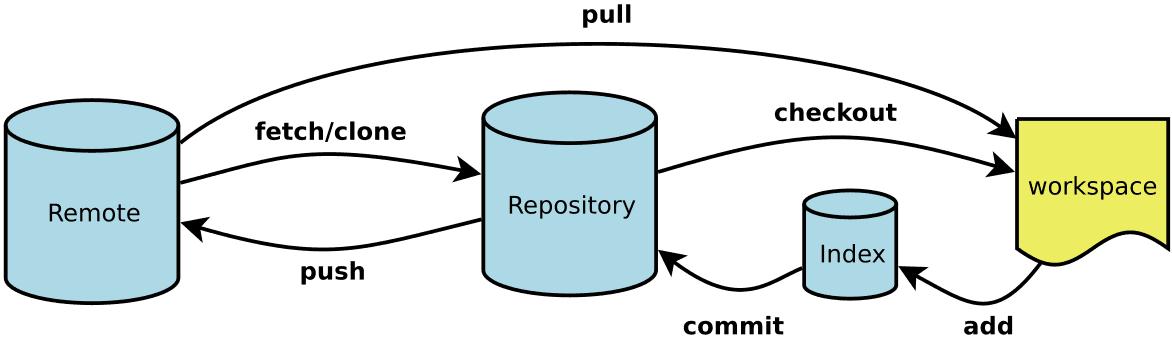
初始化
- git init # 在当前目录新建一个
Git代码仓库 - git init [project-name] # 新建一个目录,将其初始化为
Git代码库 - git clone [url] # 下载一个项目和它的整个代码历史
Husky
Husky 是一个 Git hooks 工具,它让在 Git 仓库中使用 Git hooks 变得更加简单和方便
自动化代码质量检查
- pre-commit hook:在提交代码前运行
- pre-push hook:在推送代码前运行
- commit-msg hook:验证提交消息格式
项目结构
1 | .husky/ |
配置
- git config –system –unset credential.helper # 重置 Git 本地用户凭据
- git config –global credential.helper store # 存储 Git 本地用户凭据
- git config -l/–list # 显示当前的
Git配置 - git config –local -l # 显示本地配置
- git config –global -l # 显示全局配置
- git config -e [–global] # 编辑
Git配置文件 - git config [–global] user.name ‘[name]’ # 设置提交代码时的用户信息-用户名
- git config [–global] user.email ‘[email address]’ # 设置提交代码时的用户信息-邮箱
- git config –global alias.co checkout # 配置
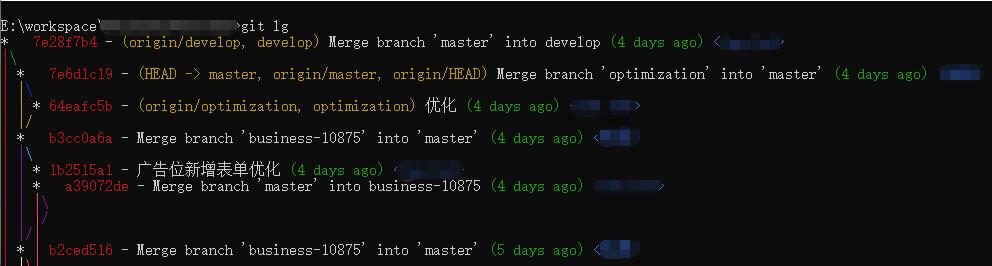
checkout快捷键 - git config –global alias.lg “log –all –color –graph –pretty=format:’%Cred%h%Creset -%C(yellow)%d%Creset %s %Cgreen(%cr) %C(bold blue)<%an>%Creset’ –abbrev-commit” # 配置
log快捷键和显示历史颜色 - git config –global –unset name # 删除已配置的命令
- git config –global http.proxy # 查询到当前是否设置了代理
- git config –global –unset http.proxy # 取消代理
alias.log 美化
%H commit hash
%h commit short hash
%T tree hash
%t tree short hash
%P parent hash
%p parent short hash
%a[n|N] 作者名字
%a[e|E] 作者邮箱
%a[d|D|r|t|i] 日期格式
%c[n|N] 提交者名字
%c[e|E] 提交者邮箱
%c[d|D|r|t|i] 提交的日期格式
%d ref 名称
%e encoding
%s commit 信息标题
%f 过滤 commit 信息的标题使之可以作为文件名
%b commit 信息内容
%N commit notes
%g[D|d] reflog selector
%gs reflog subject
%Cred 切换至红色
%Cgreen 切换至绿色
%Cblue 切换至蓝色
%Creset 重设颜色
%C(color) 指定颜色
%n 换行
%m left right or boundary mark
%%a raw %
%x00 print a byte from a hex code
%w([[,[,]]]) switch line wrapping, like the -w option of git-shortlog(1).
1
git config [--global] alias.lg "log --color --graph --pretty=format:'%Cred%h%Creset -%C(yellow)%d%Creset %s %Cgreen(%cr) %C(bold blue)<%an>%Creset' --abbrev-commit"
远程仓库信息
- git remote # 显示远程仓库名
- git remote -v # 显示远程仓库名和地址
- git remote add <name> <url> # 添加远程仓库
- git remote rename <old-name> <new-name> # 修改远程仓库名
- git remote remove <name> # 删除远程仓库
- git remote show <name> # 显示远程仓库详细信息
- git remote get-url [–push] [–all] <name> # 显示远程仓库的地址
- git remote set-url <name> <url> # 替换远程仓库的地址(fetch/push)
- –add <name> <url> # 向远程仓库添加 push 地址
- –delete <name> <url> # 删除远程仓库的指定地址
增加/删除文件
- git add [file1] [file2] … # 添加到指定文件到暂存区
- git add [dir] # 添加指定目录到暂存区,包括子目录
- git add . # 添加当前目录的所有文件到暂存区
- git add -A/–all # 添加当前目录的所有文件到暂存区
- git add -i # 进入互动模式
- git rm [file1] [file2] … # 删除工作区文件,并将这次删除操作添加到暂存区
- git rm –cached [file] # 停止追踪指定文件,但该文件会保留在工作区
- git mv [file-original] [file-renamed] # 文件重命名,并将此次操作添加到暂存区
撤销
checkout
撤销工作区, 暂存区, 版本库的修改使用 restore 命令
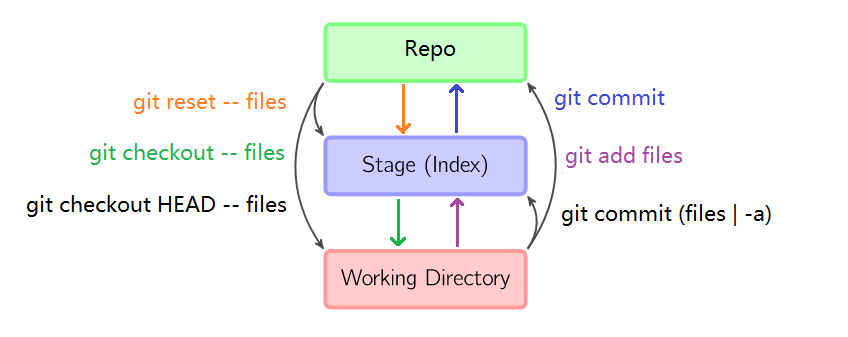
- git checkout – [file] # 撤销工作区指定文件的修改
- git checkout [commit] [file] # 恢复某个
commit的指定文件到工作区 - git checkout . # 恢复上一个
commit的所有文件到工作区
revert
- git revert [options] commit-ish… #撤销一个或多个 commit 操作
- git revert –no-commit/-n <commit-ish> # 新建一个 commit 撤销一个或多个 commit,手动 commit
reset
- git reset [file] # 重置暂存区的指定文件,与上一次
commit保持一致,但工作区不变 - git reset –hard # 重置暂存区和工作区,与上一次
commit保持一致 - git reset [commit] # 重置当前分支的指针为指定
commit,同时重置暂存区,但工作区不变 - git reset –hard [commit] # 重置当前分支的 HEAD 为指定
commit,同时重置暂存区和工作区,与指定 commit 一致 - git reset –keep [commit] # 重置当前 HEAD 为指定
commit,但保持暂存区和工作区不变 - git reset –soft HEAD^ # 还原版本库到上一个版本
- git reset –mixed HEAD^ # default, 还原版本库、暂存区到上一个版本
- git reset -–hard HEAD^ # 还原版本库、暂存区、工作区到上一个版本
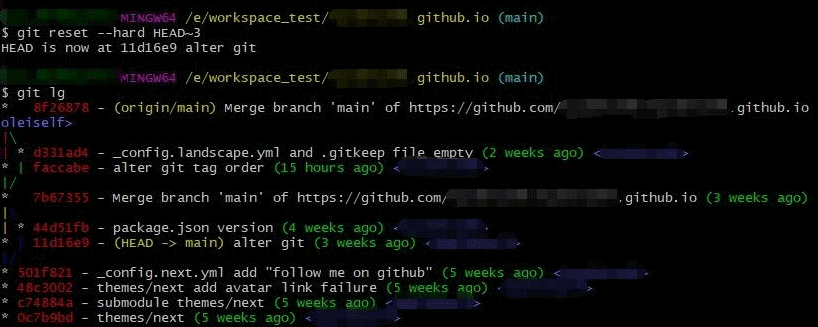
- git reset -–hard HEAD~3 # 还原到第三个版本
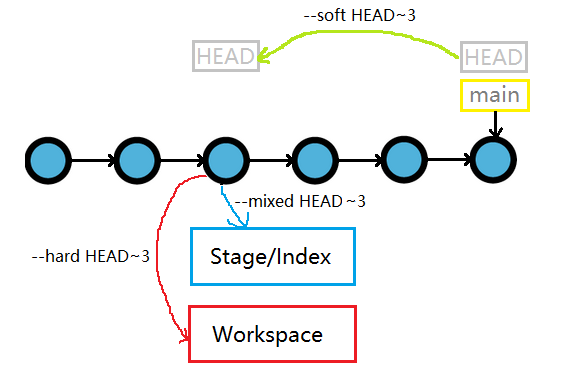
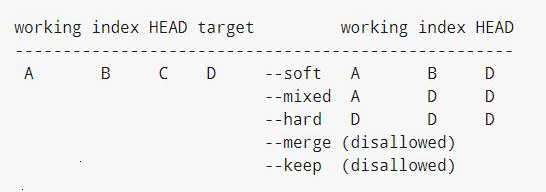
reset 回退操作时只在当前分支的 commit 上操作, 跳过 merge 进来的 commit
restore
Git 2.23 引入, 用于简化和改进文件恢复操作,相比于旧的命令(如 git checkout 和 git reset),它更专注于恢复文件内容和工作区状态
1 | git restore [options] [\<pathspec\>…] |
- -s,–source=<commit> 从指定的提交中恢复文件到工作区(暂存区和版本库不变)。默认为 HEAD,即当前提交
- -S,–staged 恢复暂存区中的文件内容到工作区中
- -W,–worktree 默认, 撤销工作区的修改(丢弃未暂存的更改)
- -2,–ours 在合并冲突时,恢复为当前分支的版本(即”我们”的版本)
- -3,–theirs 在合并冲突时,恢复为另一个分支的版本(即”他们”的版本)
- –dry-run 显示将要恢复的文件和路径,而不实际进行恢复
- -p 交互式恢复
- git restore . 恢复工作区的整个工作目录
1 | # 选择性恢复(放弃工作区修改, 保持暂存区不变) |
暂存
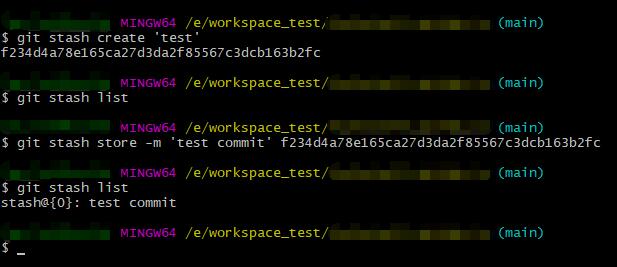
- git stash # 将没有提交的内容(包含工作区和暂存区)保存至堆栈中
- 如果工作区的文件没有被 git 管理过, 就不能被保存到堆栈
- [-u | –include-untracked | –only-untracked] # 对未追踪文件进行暂存
- [-a | –all] # 对所有文件进行暂存
- -S, --staged # 只暂存暂存区的修改
- -k,--[no-]keep-index # 只暂存工作目录的修改
- [(-m | –message) <message>] # 同命令 git stash save
- git stash save [<message>] # 保存堆栈时添加备注信息
- git stash branch <branchname> [<stash>] # 将堆栈中指定的条目迁出到新分支上
1 | # 基于 stash@{1} 创建新分支 new-feature, 创建成功时删除 stash@{1} |
- git stash list # 列出堆栈中保存的记录
- git stash show [<stash>] # 查看堆栈中最新保存的更改信息
- git stash pop [stash@{n}] # 取出堆栈中指定的 stash 并移出堆栈中
- git stash apply [stash@{n}] # 取出堆栈中指定的 stash 不移出堆栈中
- git stash drop [stash@{n}] # 移出堆栈中指定的 stash, 配合 apply 使用
- git stash clear # 清空堆栈中
代码提交
git commit -m ‘message’ # 提交暂存区到仓库区
git commit [file1] [file2] … -m ‘message’ # 提交暂存区的指定文件到仓库区
git commit -a # 提交工作区自上次
commit之后的变化,直接到仓库区git commit -v # 提交时显示所有
diff信息git commit –amend -m ‘message’ # 使用一次新的
commit,替代上一次提交, 如果代码没有任何新变化,则用来改写上一次commit的提交信息git commit –amend [file1] [file2] … # 重做上一次
commit,并包括指定文件的新变化git commit -n, --no-verify # 提交时忽略 pre-commit 和 commit-msg hooks
查看信息
status
- git status # 显示有变更的文件
- git status –porcelain # 显示工作区和暂存区的有变更的文件及路径
log
git log # 显示当前分支的历史版本
git log origin/master # 查看远程分支的历史记录
git log –stat # 显示
commit历史,以及每次commit发生变更的文件git log –follow [file] # 显示某个文件的版本历史,包括文件改名
git log –stat –summary # 查看每个版本变动的档案和行数
git log -p [commit] [file] # 显示指定版本号指定文件的修改详情
git log –max-count=[number] # 显示最近的 [number] 个提交
git log –skip=[number] # 跳过 [number] 个提交
git log –[since|after|before]=[date] # 限定时间范围
git log –branches[=<pattern>] # 限定分支范围
git log –tags[=<pattern>] # 限定标签范围
diff
git diff [options] [commit [commit]] [–] [path…] # 比较指定文件的指定版本之间的不同
git diff [first-branch] … [second-branch] # 显示两次提交之间的差异
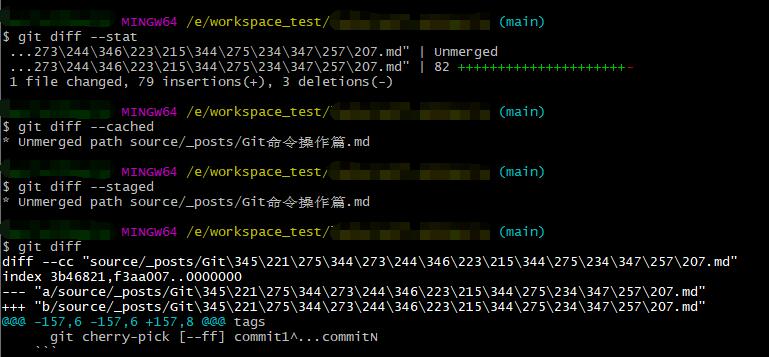
git diff # 显示暂存区和工作区的差异
git diff –cached [file] # 显示暂存区和上一个
commit的差异git diff HEAD # 显示工作区与当前分支最新
commit之间的差异git diff –staged # 比较暂存区和版本库差异
git diff –stat # 仅仅比较统计信息
git diff –check # 它将会找到可能的空白错误并将它们为你列出来
git diff –name-only 只显示有变更的文件名及路径
blame/show/whatchanged
- git whatchanged [file] # 显示某个文件的版本历史,包括文件改名
- git blame [file] # 显示指定文件是什么人什么时候修改过
- git show [commit] # 显示某次提交的元数据和内容变化
- git show –name-only [commit] # 显示某次提交发生变化的文件
- git show [commit]:[filename] # 显示某次提交时,某个文件的内容
- git reflog # 显示当前分支的最近几次提交
标签
-l --list
-d, --delete
git tag # 列出所有 tag
git tag [tag] # 新建一个
tag,在当前commit上git tag [tag] [commit] # 新建一个
tag,在指定commit上git show [tag] # 查看
tag信息git push [remote] [tag] # 提交指定
taggit push [remote] –tags # 提交所有
taggit tag -d [tagname] # 删除一个本地标签
git push origin :refs/tags/[tagname] # 删除远程仓库的指定标签
git checkout -b [branch] [tag] # 新建一个分支,指向某个
taggit tag -m <message> # 在当前 commit 上创建一个 tag 并添加注释
git tag -e [tagname] # 编辑一个 tag 的注释
git tag –contains [commit] # 显示包含指定提交的标签
git tag –merged [commit] # 显示包含指定提交的标签
git tag –sort <key> # 按照指定的排序方式显示标签
分支
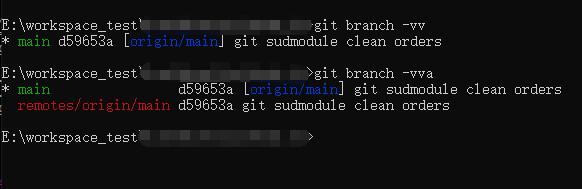
git branch -vv # 列出分支的信息
git branch -l # 列出本地所有分支
git branch -r # 列出本地所有远程分支
git branch -a # 列出本地所有分支和远程分支
git branch -d [branch-name] # 删除分支
git branch -m old_branch_name new_branch_name # 分支重命名
git branch [branch-name] # 新建一个分支,但依然停留在当前分支
git branch [branch-name] [master] # 基于某指定分支新建分支
git branch -D [branch-name] # 强制删除分支
git branch -dr [remote/branch] # 删除远程分支, 建议使用 git push origin –delete [remote_branch_name]
git branch [branch] [commit] # 新建一个分支,指向指定
commitgit branch –track [local-branch] [remote-branch] # 新建一个分支,与指定的远程分支建立追踪关系
git branch –set-upstream-to=[remote-branch] [local-branch] # 手动建立追踪关系,在现有分支与指定的远程分支之间
git checkout -b [branch] # 新建一个分支,并切换到新分支
git checkout [branch-name] # 切换到指定分支,并更新工作区
git push origin –delete [remote_branch_name] # 删除远程分支
cherry
比较两个分支之间提交差异的工具,特别适合识别哪些提交已经或尚未被应用到目标分支.
+开头的行表示提交只存在于当前分支-开头的行表示提交已经存在于比较的分支
1 | git cherry [-v] [<upstream> [<head> [<limit>]]] # 比较分支的提交差异 |
- -v,--[no-]verbose 显示完成的提交信息
cherry-pick
--continue 继续 cherry-pick 操作
--abort 完全取消整个 cherry-pick 操作序列
--skip 跳过当前冲突的提交,继续下一个
--quit 退出 cherry-pick 操作但保留已完成的更改, 忽略剩余的提交序列
-e, --[no-]edit 编辑提交信息
-n, --no-commit 应用提交但不自动提交
-x 在提交信息中追加来源信息
-X, --[no-]strategy-option <option> # 配置 merge 策略
-m, --mainline <parent-number> 处理合并提交时指定主分支
--ff 使用快进方式
--allow-empty 允许应用空提交
--allow-empty-message 允许应用空消息的提交
--empty=(drop|keep|stop) 如何处理被 cherry-pick 的提交与当前历史记录中已有的更改重复的情况
- drop 这个提交会被丢弃
- keep 这个提交会被保留, 暗含 –allow-empty 选项
- stop 默认行为, 当提交被应用时, cherry-pick 操作将停止, 允许检查该提交
git cherry-pick [options] commit0 commit1…commitN # 选择 commit 区间合并, 含尾不含头
git cherry-pick [options] commit1^…commitN # 选择 commit 区间合并, 包含头和尾
1 | git cherry-pick [--edit] [-n] [-m <parent-number>] [-s] [-x] [--ff] [-S[<keyid>]] <commit>... |
rev-list
按照时间顺序倒序列出提交对象
1 | git rev-list [<options>] <commit>... [--] [<path>...] |
-n <n> 限制输出的提交数量
--max-count=<n> 限制输出的提交数量
--skip=<n> 跳过指定数量的提交
--since <date> 指定开始时间
--until <date> 指定结束时间
--after <date> 指定开始时间
--before <date> 指定结束时间
--merges 只显示合并后的提交
--no-merges 不显示有一个以上父级的提交
switch
Git 2.23 引入, 用于更清晰地切换分支, 作用与 git checkout 类似,但提供了更清晰的语义和错误检查。
1 | git switch [options] \<branch-name\> [\<start-point\>] |
- -c,–create 创建并切换到新分支上, 指定 start-point 后,就可以根据历史上的其他点创建分支,而不是 HEAD 当前指向的点
- - 切换到前一个分支上
- -d,–detach 切换到用于检查和可丢弃实验的提交, 不创建新分支
- -C,–force-create 类似于 –create,但如果 新分支 已经存在,它将被重置为 <start-point>
- -m,–merge 将本地的文件修改合并到新分支上
merge
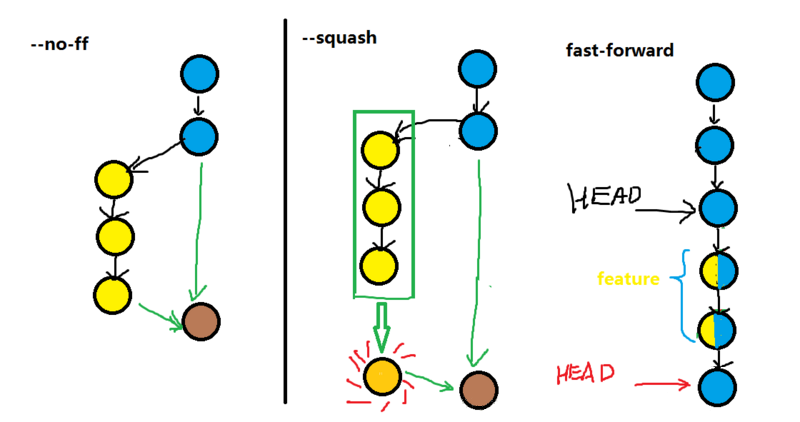
- --fast-forward(ff): 快速合并, 不创建新的 commit, 原分支删除后提交记录消失, 默认方式
- --no-ff: 不快速合并, 保留原有分支记录, 创建新的 commit
- --squash: 合并一些不必要的 commit, 创建新的 commit
- --stat: 合并结束后统计显示区别
- --continue: 解决冲突后结束合并
- --abort: 中断解决冲突结束合并
- --quit: 放弃合并
rebase
- -i,--interactive: 交互式操作
- --continue: 解决冲突后结束合并
- --abort: 中断解决冲突结束合并
- --quit: 放弃合并
- --skip: 重启合并跳过当前的修改
选项
pick(p) 使用该 commit, 不修改
reword(r) 使用该 commit, 但修改注释信息
edit(e) 使用该 commit, 但停下来修改(内容), 然后重新提交
squash(s) 将该 commit 合并到前一个 commit 中, 包含注释信息
fixup(f) 类似于 squash, 但丢弃该 commit 的注释信息
drop(d) 删除该 commit
exec(x) 执行 shell 命令
break(b) 在此停止 rebase
label(l) 为当前 HEAD 打标签
reset(t) 重置 HEAD 到指定表亲啊
merge(m) 创建 merge commit
1 | pick -> 保留 |
合并多个 commit
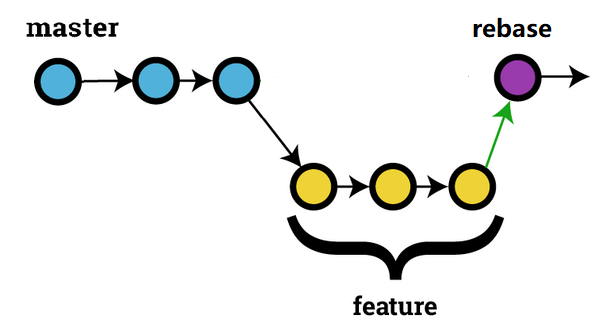
git rebase -i HEAD~n # 交互式合并从当前 commit 开始的 n 个commit
远程同步
fetch
- git fetch origin [
[: ]] # 拉取远程分支 - git fetch origin # 拉取所有远程分支信息
- git fetch origin remote_branch_name # 拉取指定远程分支信息到本地
- git fetch origin remote_branch_name:local_branch_name # 拉取指定远程分支到本地指定分支上
- 如果 local_branch_name 与当前工作分支名相同, 则提示 fatal: Refusing to fetch into current branch refs/heads/master of non-bare repository.
- 如果 本地已存在 local_branch_name, 则提示 ! [rejected] remote_branch_name -> local_branch_name (non-fast-forward)
- 否则在本地创建 local_branch_name, 并切换到 local_branch_name 上
- git fetch origin + pu:pu maint:tmp # 拉取远程仓库的 pu 和 maint 分支 到本地的 pu 和 tmp 分支上, 只有 pu 分支会被更新即使没有变动
pull
- git pull origin [
[: ]] # 拉取远程分支并快速合并, –set-upstream-to 参数有影响 - git pull origin # 拉取所有远程分支信息并快速合并
- git pull origin remote_branch_name # 拉取指定远程分支信息到本地当前工作分支上,并执行快速合并
- git pull origin remote_branch_name:local_branch_name # 拉取指定远程分支信息到本地指定分支,并快速合并到当前工作分支上
- 如果 local_branch_name 已存在, 则提示 ! [rejected] remote_branch_name -> local_branch_name (non-fast-forward)
- 如果 local_branch_name 不存在, 则创建新分支 local_branch_name, 并快速合并到当前工作分支上,不会自动切换分支
- git pull origin master –allow-unrelated-histories # 允许合并远程仓库和本地仓库无关的历史,一般用在关联两个仓库更新版本历史问题
push
- git push origin local_branch_name:remote_branch_name # 推送本地分支到远程分支, 如果远程分支不存在, 则新建
- git push origin –force # 强行推送当前分支到远程仓库,即使有冲突
- git push origin –all # 推送所有分支到远程仓库
- git push origin –delete [remote_branch_name] # 删除远程分支,功能同下
- git push origin :[remote_branch_name] # 删除远程分支,功能同上
其他
- git archive # 生成一个可供发布的压缩包
- git grep [options] # 查找功能
- git gc # 压缩历史消息节约空间
- git fsck # 对仓库进行检查
- git bisect # 查找问题
- git blame # 查找问题
notes
添加、移除或读取附加在对象上的注释,而不影响对象本身
1 | git notes add -m "This is a note" <object>; |